

KEY TAKEAWAYS
- WordPress is a free Content Management System that lets you build websites without coding, powering 43% of all websites globally
- WordPress.org (self-hosted) gives you complete control while WordPress.com is a hosted solution with some limitations—most serious users choose .org
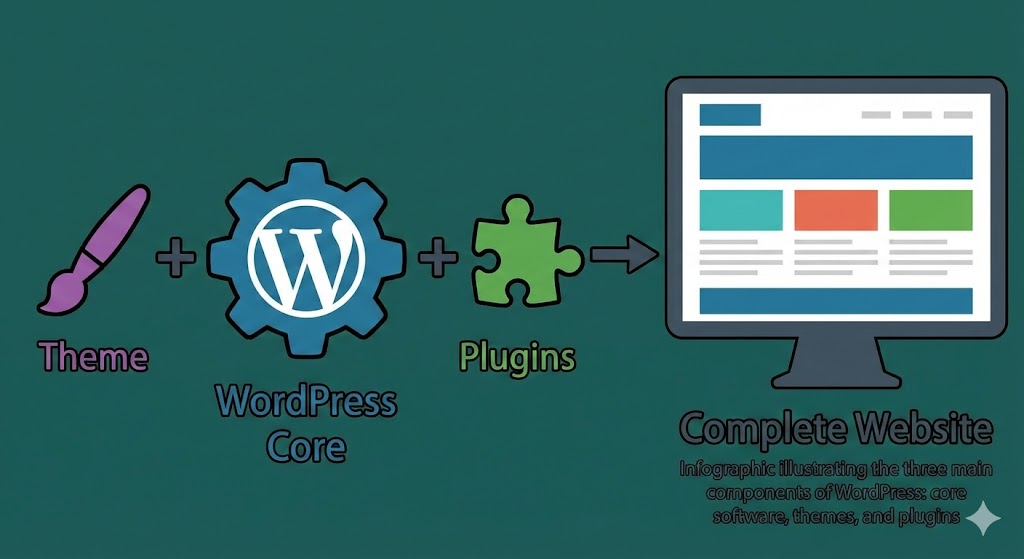
- Three core components work together: WordPress software (engine), themes (design), and plugins (added features)
- WordPress is incredibly versatile—use it for blogs, business sites, online stores, portfolios, membership sites, or educational platforms
- You own everything with WordPress.org: your content, data, and site can be moved anywhere, giving you true digital ownership
- The learning curve is worth it: while drag-and-drop builders might be faster initially, WordPress offers unlimited long-term potential and scalability
What is WordPress? (The Simple Answer)
WordPress is a Content Management System (CMS)—think of it as a tool that lets you create and manage a website without needing to write code from scratch. It’s like using Microsoft Word for documents, but instead, you’re building entire websites.
Here’s the cool part: WordPress powers over 43% of all websites on the internet. That includes small personal blogs, major news outlets like The New York Times, and even large corporate websites.
If you’ve ever felt intimidated by the idea of building a website, WordPress was literally created to solve that problem.
Understanding Content Management Systems (CMS)
Before we dive deeper into WordPress, let’s understand what a CMS actually does.
The Old Way vs. The CMS Way
The Old Way (Without CMS): Imagine you want to add a new blog post to your website. You’d need to:
- Write HTML code for the page structure
- Add CSS to style it properly
- Upload files to your server using FTP
- Manually link it to your other pages
- Update your navigation menu in code
The CMS Way (With WordPress): You simply:
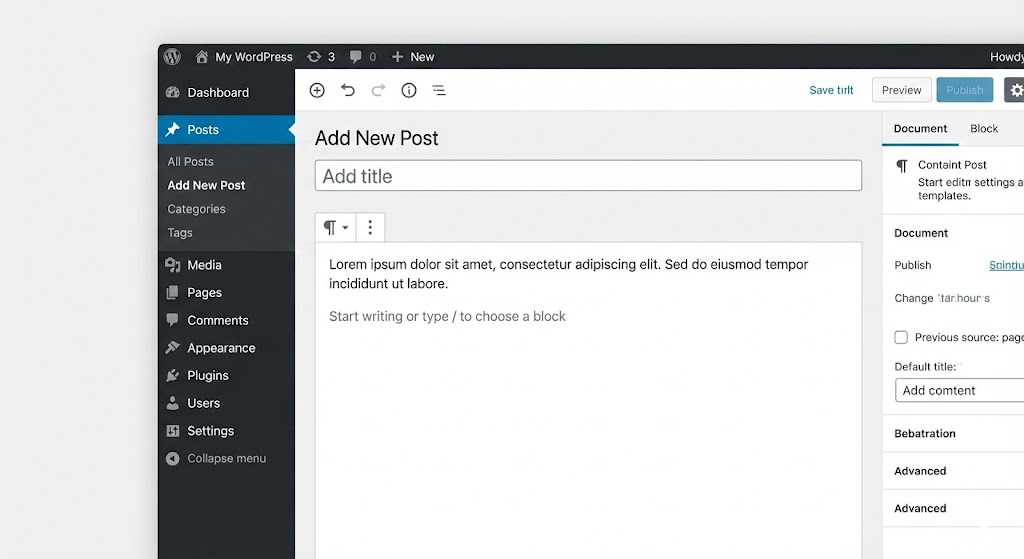
- Click “Add New Post”
- Write your content (like typing in Word)
- Click “Publish”
That’s it. WordPress handles all the technical stuff automatically.
Why This Matters for You
A CMS separates your content (words, images, videos) from the code that displays it. This means you can focus on what you want to say, not how to make it appear on screen.
Think of it like this: You don’t need to understand how your car’s engine works to drive it. Similarly, you don’t need to know coding to build a WordPress website.
The Two Flavors of WordPress: .com vs .org
This confuses a lot of beginners, so let’s clear it up right away.
WordPress.com (Hosted Solution)
WordPress.com is like renting an apartment. Everything’s set up for you, but you have some limitations:
- Free to start (with WordPress branding)
- Hosting included
- Limited customization on free plans
- Easier for absolute beginners
- Monthly costs for advanced features
WordPress.org (Self-Hosted)
WordPress.org is like owning a house. You have complete freedom, but you handle the setup:
- Free software (always)
- You choose your own hosting provider
- Complete customization freedom
- Requires a bit more setup
- You control everything
For this tutorial series, we’ll focus on WordPress.org because it gives you unlimited potential and full ownership of your site.
💡 PRO TIP: Most people say “WordPress” and mean WordPress.org. When professionals talk about building WordPress sites, they’re almost always referring to the self-hosted version.
How WordPress Actually Works
Let’s break down what happens behind the scenes when someone visits your WordPress website.
The Three Key Components
1. WordPress Core (The Engine) This is the main WordPress software. It’s the foundation that handles all the basic functions—like creating posts, managing users, and displaying your content.
2. Themes (The Design) Themes control how your website looks. They’re like different outfits for the same person—the content stays the same, but the appearance changes completely.
3. Plugins (The Add-ons) Plugins add extra functionality. Want a contact form? There’s a plugin. Need an online store? There’s a plugin for that too.
Here’s a simple code example of how WordPress displays content:
<?php
// This is how WordPress retrieves and displays your latest post title
if ( have_posts() ) :
    while ( have_posts() ) : the_post();
        // Display the post title
        the_title( '<h1>', '</h1>' );
        // Display the post content
        the_content();
    endwhile;
endif;
?>
Plain-English Explanation: This code tells WordPress: “If there are posts, show them one by one. For each post, display the title in a heading and then show the content.” You won’t need to write this code yourself—themes handle it automatically. But it helps to understand that WordPress uses simple, readable code behind the scenes.
Why Choose WordPress? The Real Benefits
1. You’re in Good Company
WordPress isn’t just for beginners. Major brands use it:
- TechCrunch
- The Walt Disney Company
- Sony Music
- Microsoft News
If it works for them, it’ll definitely work for you.
2. It Grows With You
Start with a simple blog today. Add an online store next month. Build a membership site next year. WordPress scales with your needs.
You’re not locked into one type of website—WordPress adapts to whatever you need.
3. Massive Community Support
Stuck on something? WordPress has:
- Over 60,000 free plugins
- Thousands of free and premium themes
- Millions of forum posts and tutorials
- Active developer community
Someone has likely already solved the problem you’re facing.
4. SEO-Friendly from the Start
WordPress is built with search engines in mind. The code is clean, the structure is logical, and there are powerful SEO plugins (like Yoast SEO) that make optimization simple.
5. You Own Everything
Unlike website builders where you’re locked in, with WordPress:
- You own your content
- You own your data
- You can move hosts anytime
- You can export everything
💡 PRO TIP: WordPress sites are also incredibly cost-effective. For less than $100 per year (hosting + domain), you can run a professional website that would cost thousands to build from scratch.
What Can You Build With WordPress?
The versatility of WordPress might surprise you.
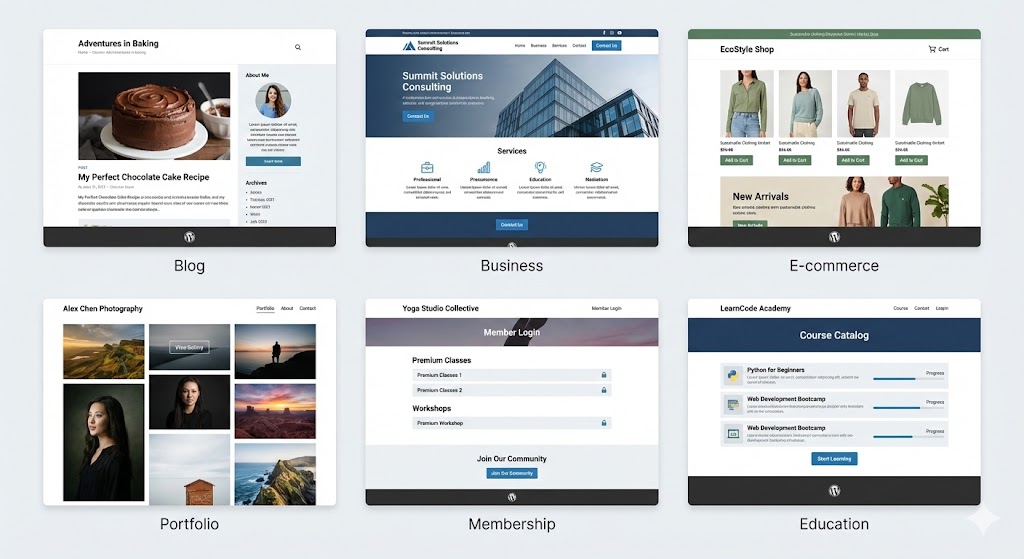
Personal Blog
Share your thoughts, experiences, or expertise with the world. WordPress started as a blogging platform, so it excels at this.
Business Website
Create a professional online presence with service pages, portfolios, and contact forms.
Online Store (E-commerce)
Using the WooCommerce plugin, you can sell physical products, digital downloads, or services.
Portfolio
Showcase your creative work—photography, design, writing, or any other craft.
Membership Site
Build a community with restricted content for paying members or registered users.
Educational Platform
Create and sell online courses using Learning Management System (LMS) plugins.
WordPress vs. Other Website Builders
Let’s be honest about how WordPress compares to alternatives like Wix, Squarespace, or Shopify.
When WordPress Wins
- Flexibility: No limits on what you can create
- Ownership: You control everything
- Cost: Generally cheaper long-term
- Customization: Unlimited possibilities
- Scalability: Handles small to enterprise sites
When Others Might Be Better
- Speed to launch: Drag-and-drop builders are faster initially
- Support: Hosted platforms include customer service
- Simplicity: Less learning curve with some builders
However, what you lose in initial simplicity, you gain in long-term potential and control.
Common Misconceptions About WordPress
Myth #1: “WordPress is Only for Blogs”
Reality: While WordPress started as blogging software, it evolved into a full-featured CMS that powers all types of websites.
Myth #2: “You Need to Know Coding”
Reality: You can build a complete, professional website without writing a single line of code. Coding knowledge helps but isn’t required.
Myth #3: “WordPress Sites Look the Same”
Reality: With thousands of themes and unlimited customization options, your WordPress site can look completely unique.
Myth #4: “WordPress Isn’t Secure”
Reality: WordPress core is very secure. Most security issues come from outdated plugins or weak passwords—both preventable with good practices.
Myth #5: “WordPress is Free, So It Must Be Low Quality”
Reality: WordPress is open-source, meaning it’s built and maintained by thousands of developers worldwide. “Free” doesn’t mean inferior—it means community-powered.
Understanding the WordPress Ecosystem
When you work with WordPress, you’re entering a rich ecosystem with several key players.
WordPress.org (The Software)
The nonprofit organization that maintains the free WordPress software. This is where you download WordPress and access documentation.
Hosting Providers
Companies that store your website files and make them accessible online. Popular options include Bluehost, SiteGround, and WP Engine.
Theme Developers
Individuals and companies creating the designs for WordPress sites. Some are free, others are premium (paid).
Plugin Developers
Creators who build additional functionality for WordPress sites. Again, both free and paid options exist.
The Community
Bloggers, developers, designers, and users who contribute to forums, create tutorials, and attend WordCamp events worldwide.
💡 PRO TIP: WordCamps are local WordPress conferences happening globally. They’re affordable (often $20-40) and perfect for networking and learning. Check out WordCamp.org to find one near you.
Getting Started: What You’ll Need
Now that you understand what WordPress is, here’s what you need to start building:
1. Domain Name
Your website’s address (like www.yoursite.com). Costs around $10-15 per year.
2. Web Hosting
Where your website files live. Costs $3-10 per month for starter plans.
3. WordPress Software
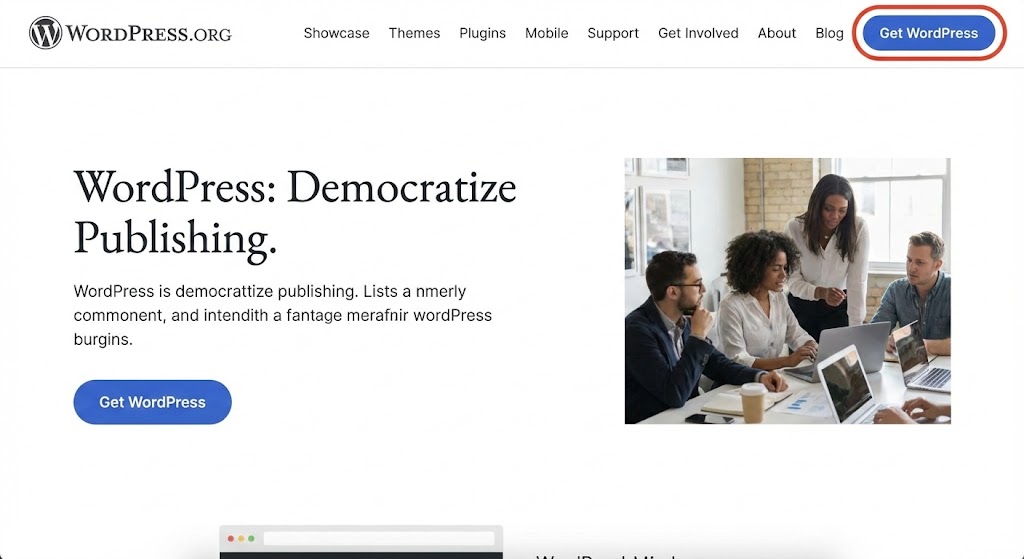
Free to download from WordPress.org.
4. Time and Patience
Building your first site takes time, but it’s incredibly rewarding.
Good news: Many hosting companies offer one-click WordPress installation, making setup incredibly easy. We’ll cover this step-by-step in Day 4 of this series.
Common Beginner Mistakes to Avoid
Mistake #1: Choosing WordPress.com When You Meant .org
Many beginners accidentally start with WordPress.com (the limited version) when they wanted the full freedom of WordPress.org.
How to avoid it: If you’re serious about building a website, go straight to self-hosted WordPress.org.
Mistake #2: Installing Too Many Plugins Right Away
It’s exciting to add functionality, but too many plugins can slow your site and create conflicts.
How to avoid it: Start with essential plugins only. Add more as you identify specific needs.
Mistake #3: Skipping Backups
New users often forget to set up backups until after they lose data.
How to avoid it: Set up an automated backup solution from day one. We’ll cover this in Week 4.
What Makes WordPress Different from HTML Websites
If you’ve heard of HTML and wonder how it relates to WordPress, here’s the comparison:
Traditional HTML Website
<!-- You'd need to write code like this for every page -->
<!DOCTYPE html>
<html>
<head>
    <title>My Blog Post</title>
    <!-- Link to CSS file for styling -->
    <link rel="stylesheet" href="style.css">
</head>
<body>
    <h1>Welcome to My Blog</h1>
    <p>This is my first post...</p>
    <!-- You'd manually code every element -->
</body>
</html>
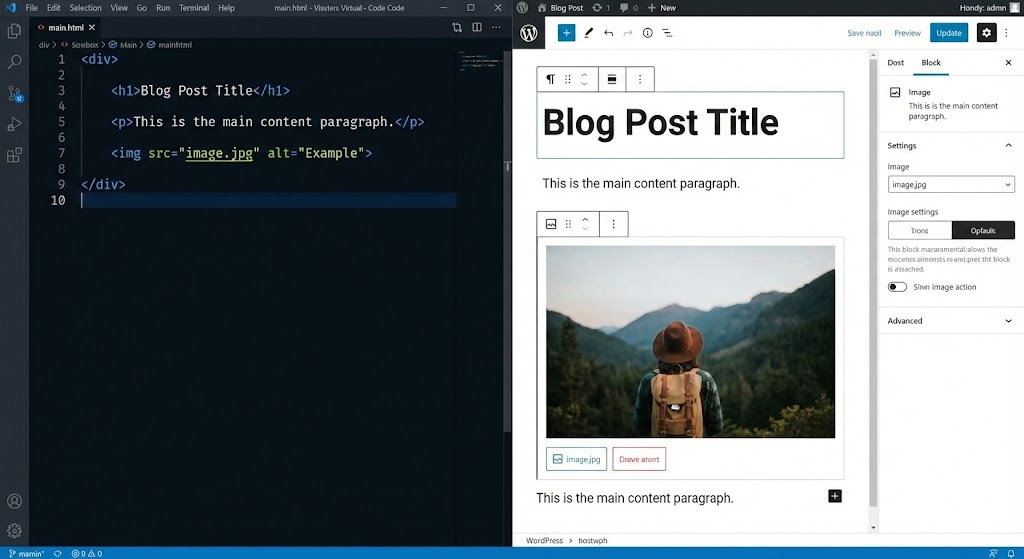
Plain-English Explanation: With traditional HTML, you write code for every single page element—headings, paragraphs, links, everything. When you want to change your site’s design, you edit code on every page individually.
WordPress Website
You simply type your content in an editor (like Microsoft Word), and WordPress automatically generates all the necessary code for you. Change your theme, and your entire site’s design updates instantly—no code editing required.
The WordPress Philosophy: Democratizing Publishing
WordPress operates on a core belief: publishing should be accessible to everyone, regardless of technical skill or economic resources.
This philosophy means:
- The software stays free forever
- It’s designed for ease of use
- The community actively helps beginners
- Barriers to entry are minimized
You’re not just using a tool—you’re joining a movement that believes in open access to publishing and freedom of expression.
What’s Next in Your WordPress Journey
Understanding what WordPress is represents your first step in a 30-day journey. Here’s what’s coming:
- Day 2: We’ll clarify the WordPress.com vs WordPress.org decision with specific recommendations
- Day 3: You’ll learn how to choose the right hosting provider
- Day 4: We’ll walk through installing WordPress step-by-step
- Week 2: You’ll start creating actual content
- Week 3: You’ll customize your site’s appearance and functionality
- Week 4: You’ll launch your site to the world
Each article builds on the previous one, taking you from complete beginner to confident WordPress user.
💡 PRO TIP: Bookmark this article series. Having quick reference to previous lessons will help as you progress through more advanced topics.
SUMMARY
WordPress is a powerful Content Management System that allows anyone to build professional websites without coding knowledge. It powers over 43% of all websites because it combines flexibility, affordability, and ease of use.
You’ve learned that WordPress.org (self-hosted) offers more freedom than WordPress.com, and that WordPress works through three main components: the core software, themes for design, and plugins for functionality. Whether you want to create a blog, business site, online store, or portfolio, WordPress adapts to your needs.
The platform’s massive community, extensive plugin library, and SEO-friendly structure make it an excellent choice for beginners and professionals alike. While there’s a learning curve, you don’t need technical skills to get started—just patience and willingness to learn.
Remember: every expert WordPress user was once exactly where you are now. The difference? They took the first step. Tomorrow, you’ll take your next step by understanding which version of WordPress is right for your project.
Ready to continue? Move on to Day 2: WordPress.com vs WordPress.org: Which One Should You Choose? where we’ll help you make this crucial decision with confidence.
FAQ SECTION
Q: Is WordPress really free, or are there hidden costs? A: The WordPress software is completely free and always will be. However, you’ll need to pay for web hosting ($3-10/month) and a domain name ($10-15/year). Premium themes or plugins are optional expenses—many excellent free alternatives exist.
Q: How long does it take to learn WordPress? A: You can build a basic website in a day or two. However, becoming comfortable with WordPress takes about 30 days of regular practice, which is exactly what this tutorial series covers. Advanced mastery comes with ongoing use.
Q: Can I switch from WordPress.com to WordPress.org later? A: Yes, you can migrate your content, but it requires some technical steps. It’s easier to start with WordPress.org if you’re serious about building a long-term website.
Q: Do I need to know HTML, CSS, or PHP to use WordPress? A: No. You can build a complete, professional website without any coding knowledge. However, learning basic HTML and CSS can help you make minor customizations down the road.
Q: Is WordPress good for SEO? A: Yes. WordPress is built with clean, search-engine-friendly code. Combined with SEO plugins like Yoast SEO or Rank Math, WordPress sites can rank very well in search results. Many top-ranking websites use WordPress.